

The QInsight user interface
QInsight is a graphical application with a main ribbon menu and a dockable panel showing the individual details of the project.
Ribbon menu
Home


Project management and access to its configuration:
- Project — create, open, save, and close a project (New, Open, Save, Save as, Close).
- Workspace — add and remove a workspace (Add, Remove).
- Project Configuration — configure the individual parts of the project: Project, Drivers, Protocols, Events, Variables, Presentations, Conversions, Scripts.
Runtime


Running the communication and working with recorded data:
- Run — connect to and disconnect from the device (Connect, Disconnect).
- Replay data — import a recorded log, export it, and play it back (Import, Export, Replay, Stop, Pause), including the record timeline.
Tools
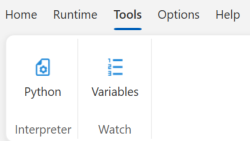
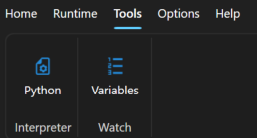
Additional tools:
- Interpreter — the integrated Python interpreter.
- Watch — an overview of all variables (Variables), including their current state and value.
Options
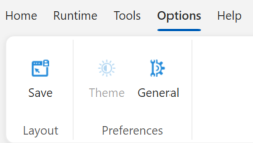
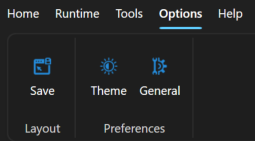
Application settings:
- Layout — save the window layout for both the edit and runtime mode (Save).
- Preferences — application appearance (Theme) and general settings (General).
Help
It only contains information about the application.
Dockable project panel
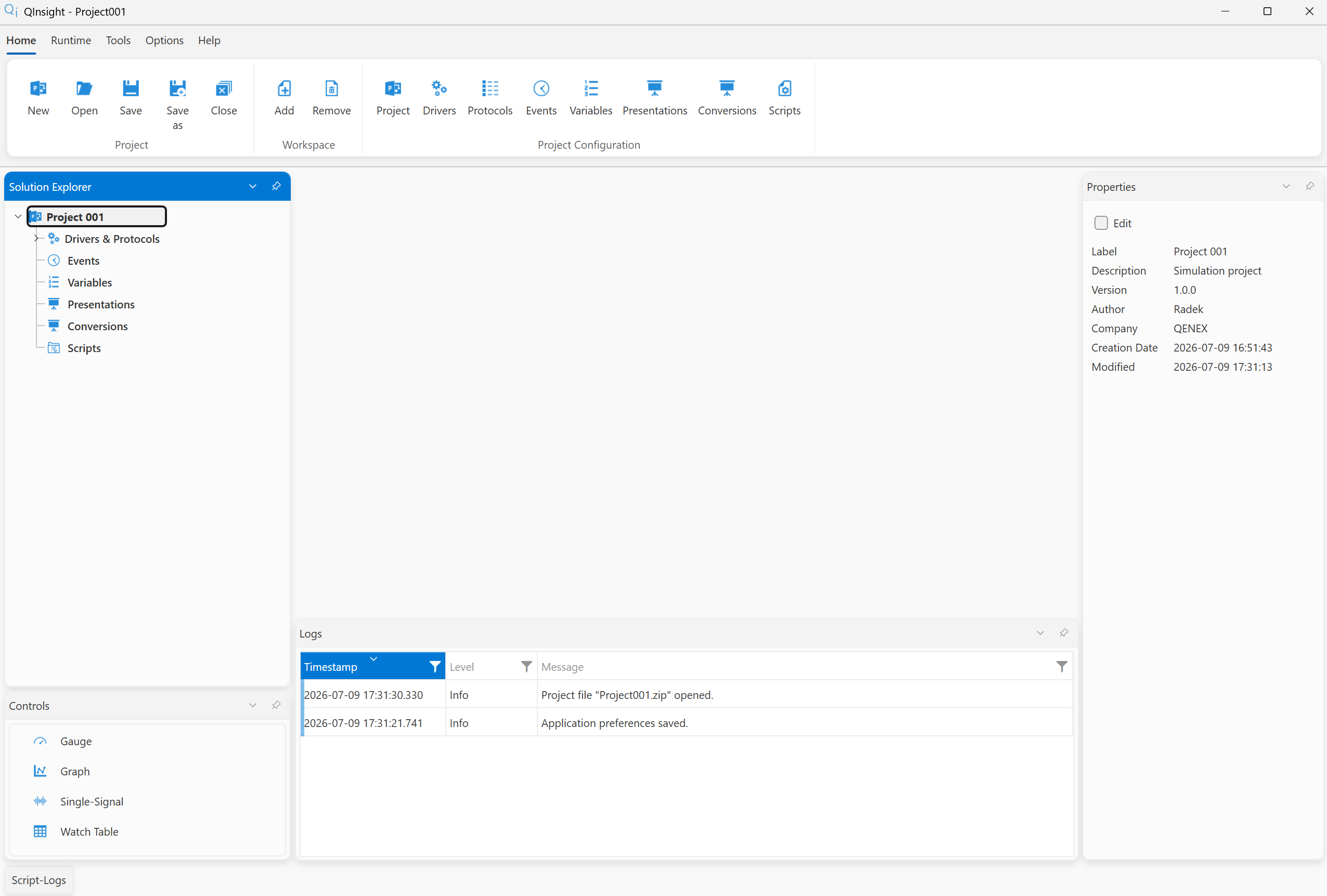

The project itself is shown in a dockable panel that lets you arrange the basic windows that are not part of the project. These are Solution Explorer, Controls, Logs, Script-Logs, and Properties. This arrangement can be saved separately for the edit and runtime mode (in the given mode, click the Save button in the Options/Layout menu); the arrangement is then kept across all projects. The layout of the project's own windows (the workspaces) is stored separately in the given project — it is saved automatically when the project is saved (Home/Project/Save or Save as).
The Solution Explorer shows the individual parts of the project. Clicking an item shows its properties on the right in the Properties window. Controls are display elements for the values of communicated variables; they are placed onto a workspace by drag & drop. The Logs window shows information about the application state (e.g. a warning from a Python script). Script-Logs shows messages from running Python scripts (the standard output is redirected into the log window — e.g. anything printed with print).