

Add a driver
A driver is a library that connects QENEX Suite to specific hardware or
a communication interface — e.g. a TCP/IP connection or a CAN adapter.
Drivers are plugins: the application loads them from the Drivers folder
next to QInsight.exe, so new drivers can be added without a new version of
the application.
Steps
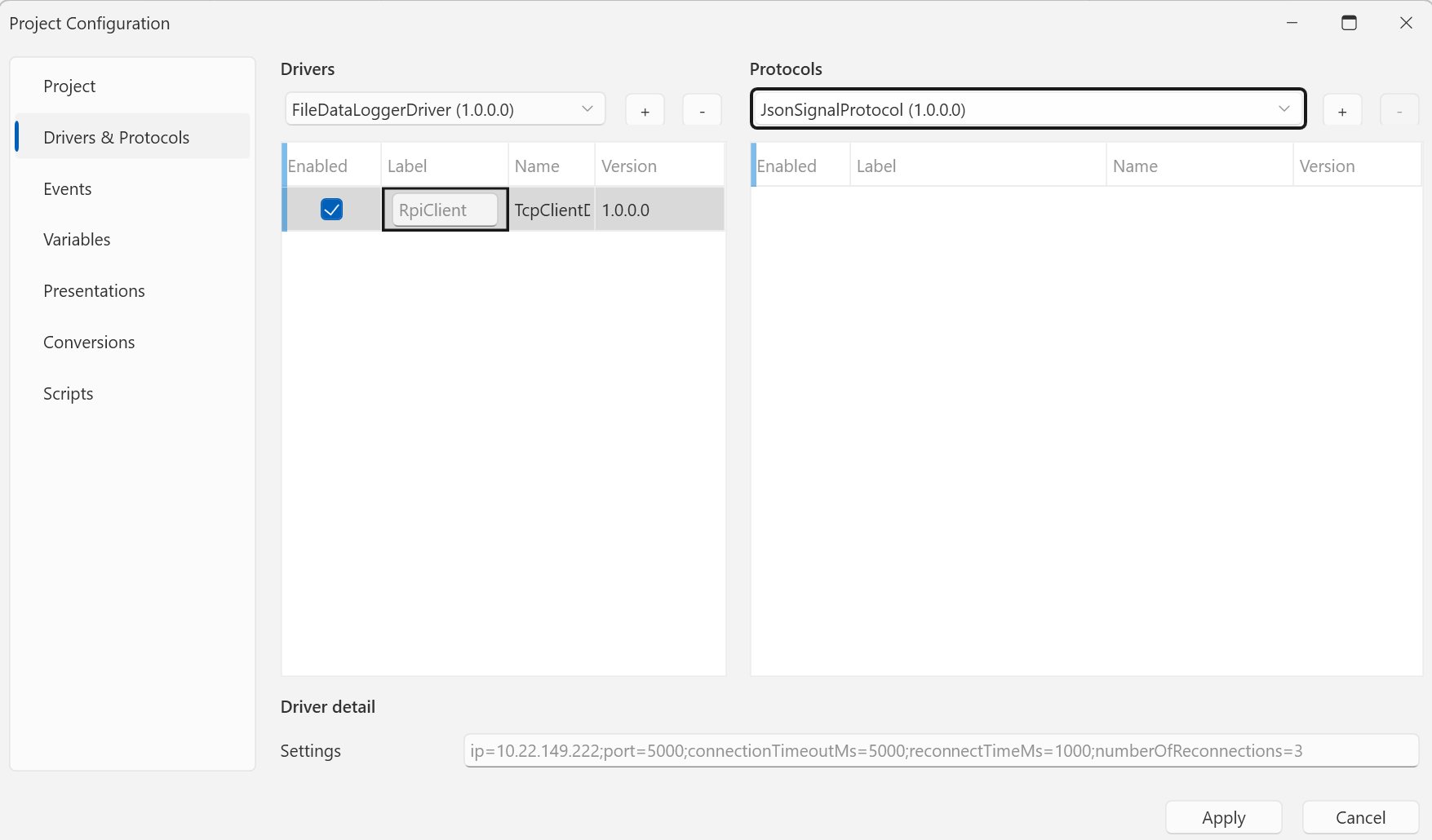
- In the ribbon menu, click Home → Project Configuration → Drivers. The project configuration opens on the Drivers & Protocols section.
- In the left Drivers column, pick the desired driver from the list and click the + button.
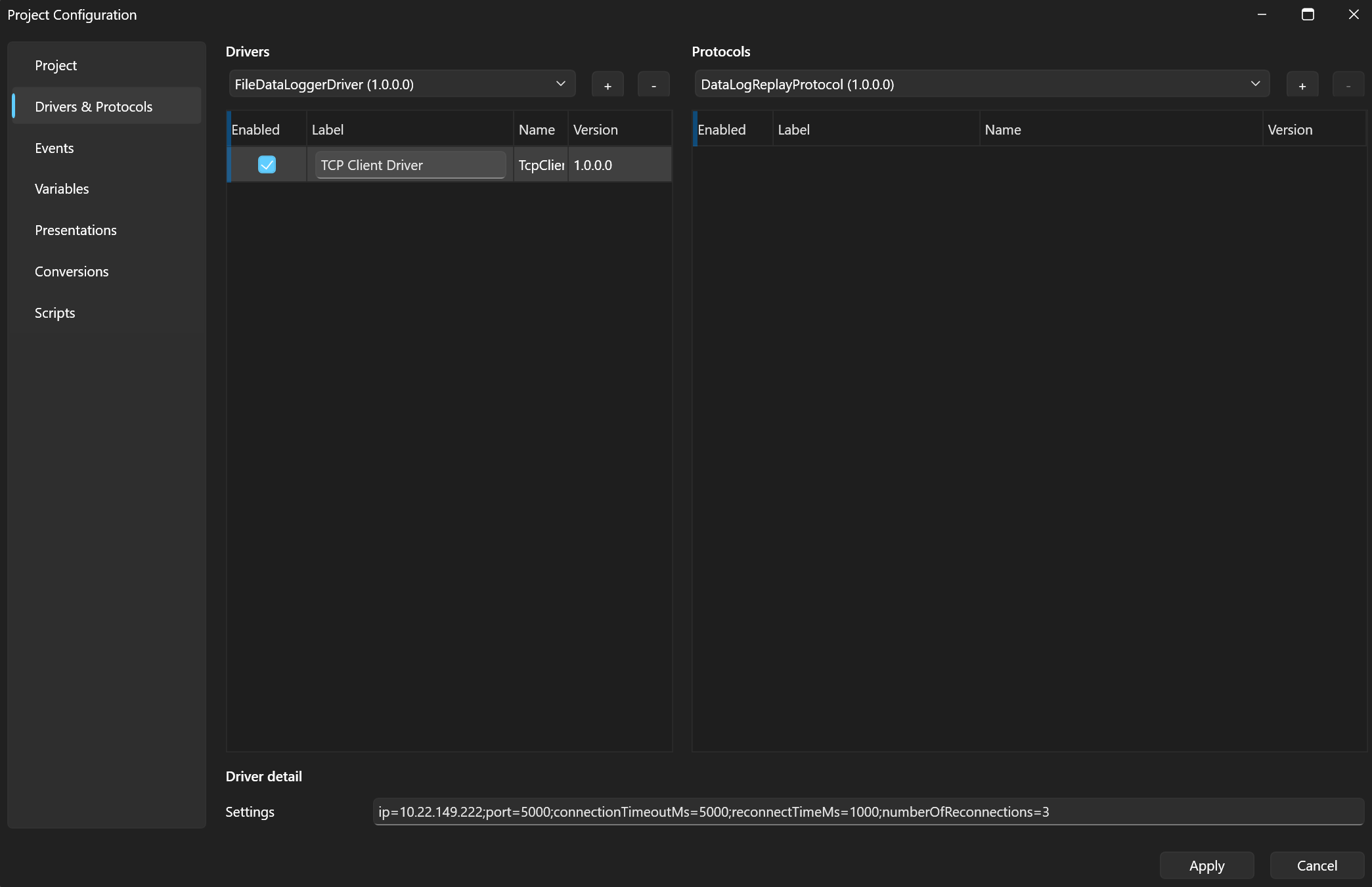
- The driver is added to the grid. You can name it in the Label column; the Name and Version columns are informative. The Enabled checkbox determines whether the driver is used on start.
- In the driver detail, the Settings field is automatically pre-filled
with a template of all the driver's parameters and their default values
(the
key=valueform separated by semicolons), so you can see at a glance what can be configured.
Important: The pre-filled values are only defaults. Always review them and overwrite them to match your real setup — for device-specific parameters (e.g.
port,deviceId,ip) the default usually will not apply and you must set it yourself (e.g.port=COM1→port=COM3).
Example: TCP Client
Adding the driver pre-fills:
ip=127.0.0.1;port=5000;connectionTimeoutMs=5000;reconnectTimeMs=1000;numberOfReconnections=3;idleTimeoutMs=5000
The TCP Client driver connects as a client to the given IP address and
port and reads data from the device. Overwrite ip and port with the
address and port of your device. The remaining parameters control the
connection timeout and the reconnect behavior (interval and number of
attempts); idleTimeoutMs re-establishes the connection when the server
stays silent for too long (set it to 0 for request/response protocols such
as Modbus TCP).
Example: PEAK CAN
Adding the driver pre-fills:
deviceId=0x51;bitrate=250000
The PEAK CAN Adapter driver communicates through a PEAK PCAN USB adapter. One
driver instance corresponds to one physical adapter — it is selected by the
Device ID (hexadecimal, stored in the adapter), so the configuration
survives plugging the adapter into a different USB port. The pre-filled
deviceId=0x51 is only a placeholder — set it to your adapter's Device
ID. bitrate is the CAN bus speed (50 kbit/s to 1 Mbit/s); overwrite it
with your bus speed.
An overview of all shipped drivers and their parameters is in the reference.
Next
The driver itself does not understand the data — that is the job of a protocol.